
|
|
General HydroStatics
Ship Stability Software |
|
Command of the Week
(New or interesting aspects of GHS that you may not know about) |
|
DB EditLSwt @Rig
(Requires GHS version 19.00 or later) |
|
Note: Please make sure your GHS Data Base script is current. To see if it is and get an immediate update if it isn't, enter DB UPDATE at the GHS prompt.
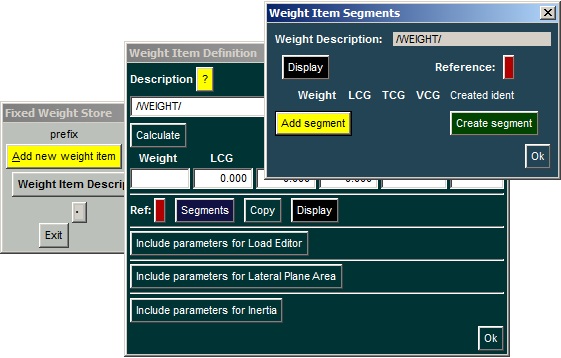
The Data Base command DB EditLSwt ("Edit LightShip Weight"), which was introduced in COW d008 can assist in calculating weights and centers of items belonging to light ship. An example would be anything having a cylindrical shape such as masts, booms, and stays. For your orientation, this applies to the weight segments within a weight item: |
|
|
The "Create segment" button brings up a menu of methods, one of which is @Rig.
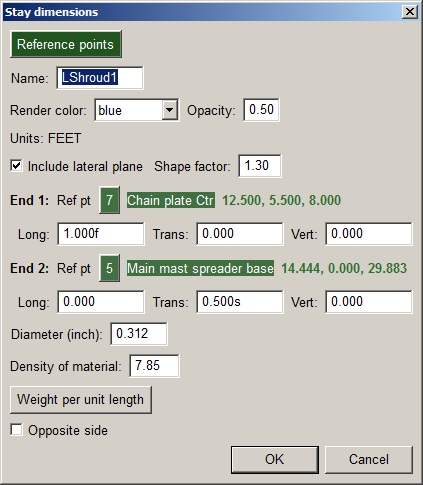
Below is an instance of @Rig applied to a "segment" of the standing rigging on a yacht: |
|
|
The essential inputs are the end locations and the diameter.
The ends are conveniently referenced to known points. The Long, Trans, and Vert fields are for offsets relative to the Reference Point.
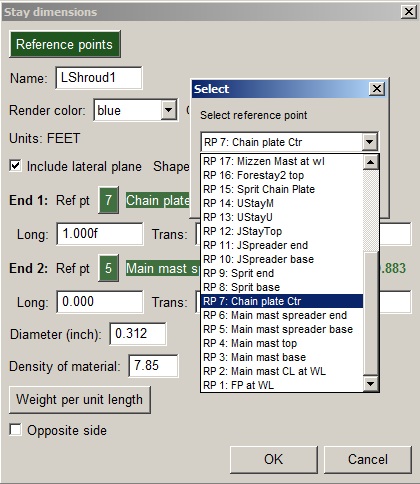
The "Ref pt" button shows the list of the Reference Points that you have defined previously: |
|
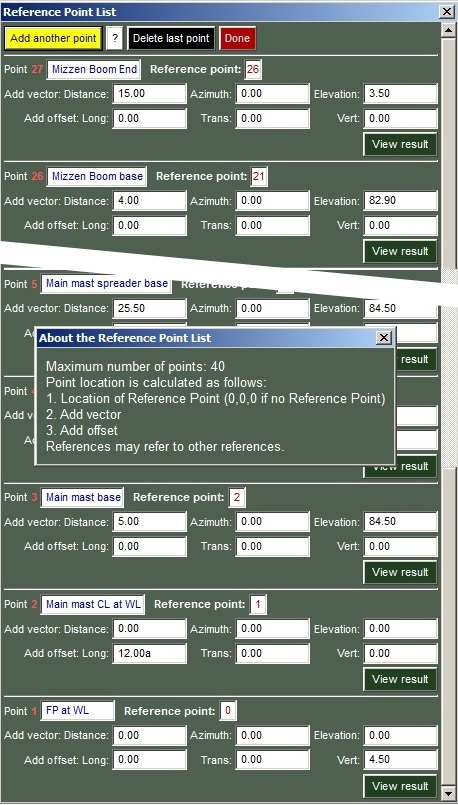
| The "Reference points" button at the top of the dialog brings up the Reference Point editor: |
|
|
Note that Reference Points can reference other Reference Points.
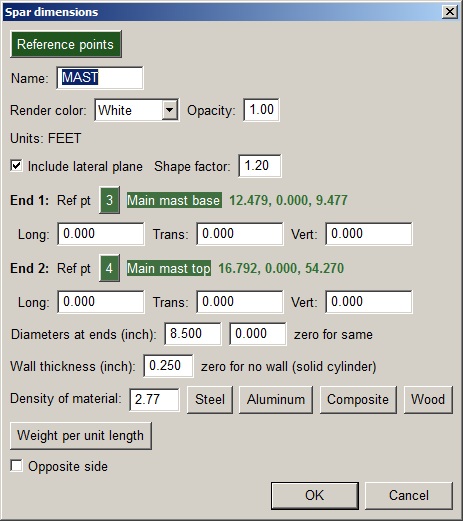
For spars that may be approximated by a cylindrical shape either solid or hollow, the @Rig weight calculator offers a separate dialog: |
|
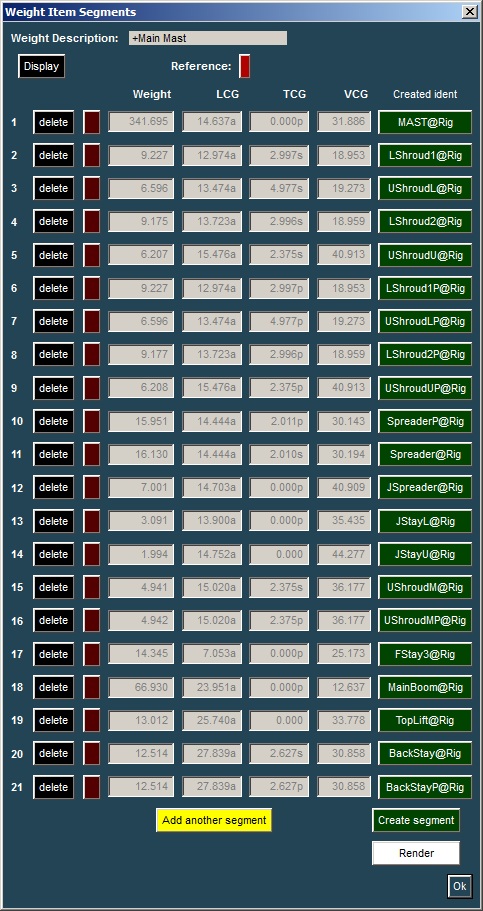
| Many "segments" are needed to represent the standing rigging on this vessel. Here is the totality for the weight item named "+Main Mast" consisting of 21 segments. |
|
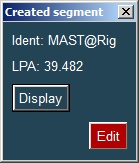
| Clicking a button on the right under "Created ident" shows the Lateral Plane Area and also allows you to edit your parameter inputs for that segment. |
|
| The Render button visualizes your numbers: |

|
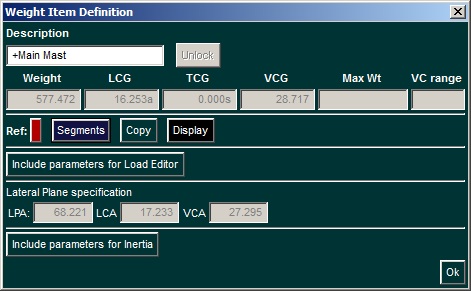
| Below is the summation of this weight item showing the overall lateral plane area and center. The numerical fields are gray, meaning they are not editable, because the numbers are results of calculations. |
|
|
Perhaps the main benefit of summing weights this way is the visual verification.
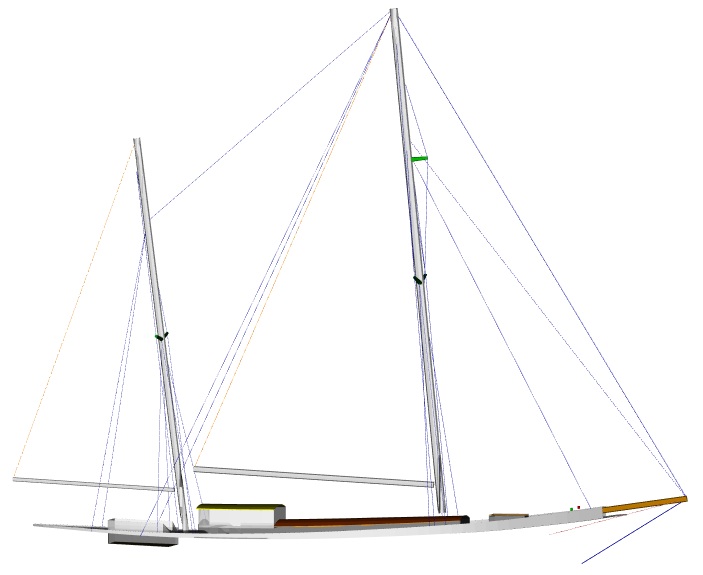
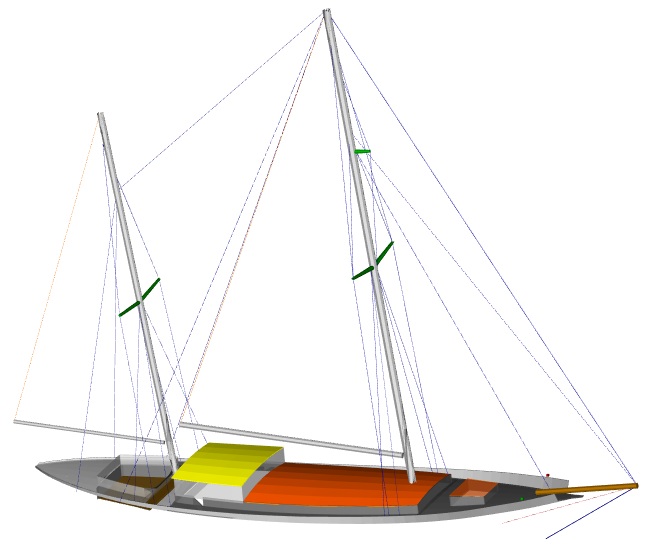
While the picture of the rig by itself is good for relative verification of its segments, it would be better if we could also show its location on the deck. |
|
|
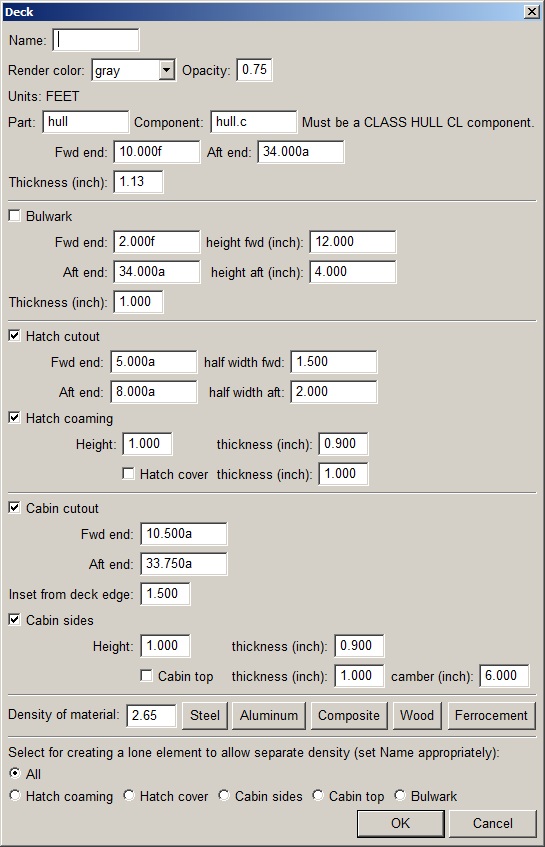
| The deck shown in the image is from the geometry of weight item "+Deck" which was made via @Deck, another new method for generating weight-item segments. Basically, it makes a slab of the given thickness fitted to the top of the hull, and from that it obtains weight and center as well as longitudinal weight distribution. What is shown above comes from multiple applications of the @Deck segment generator. Here is the first instance of its parameter template: |
|
|
The parameters in this case are for the deck with cutouts for a forepeak hatch and for
the main cabin. Notice that it stops forward of the end of the vessel. The remainder
of the deck was generated by two additional @Deck segments. By dividing
the deck into multiple segments, various features can have different weight
properties and colors. The "lone element" option at the bottom of the
parameter template makes this possible.
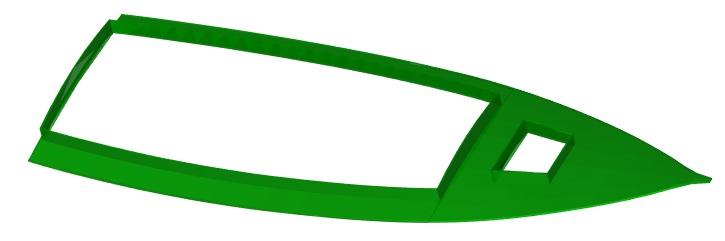
For example, the first @Deck segment produced the forward portion, from the aft end of the cabin forward: |
|
|
To apply this to the deck of a larger vessel with many hatches, a single weight item
may be pieced together in this manner with a hatch in each segment.
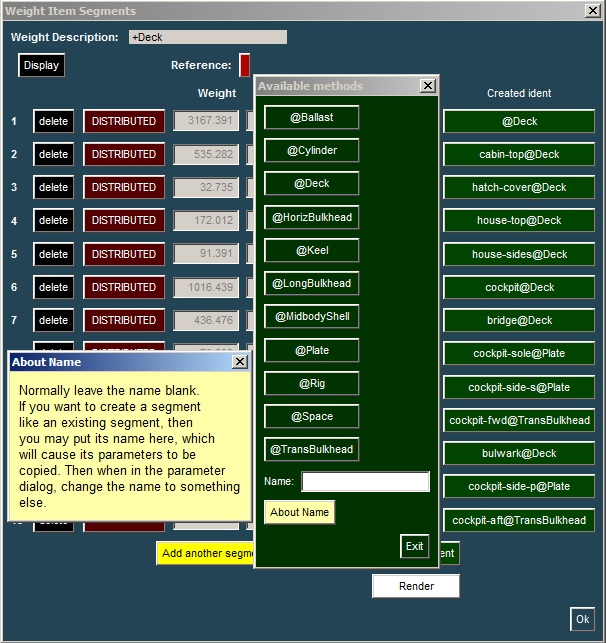
In the list of segments below, note that @Deck was used eight times to form the composite. |
|
|
Superimposed on the segment list above is the dialog that comes up when you create a new
segment. These are the segment-generating methods currently available. The
reason they are arranged in alphabetical order will be explained later.
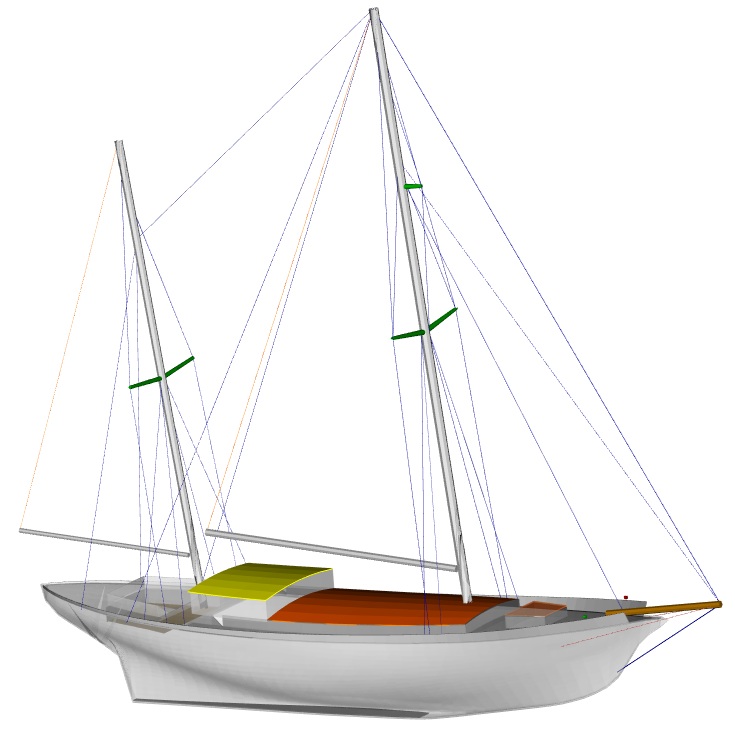
The "About Name" box describes a time-saving feature for making similar segments that are near duplicates of existing segments. Note that this deck modeling is only for the purpose of estimating light-ship weight. It lacks the detail of a quality presentation because it is derived from the buoyancy model with minimal additional input. What is a deck without a hull? With little additional effort, a weight item representing the hull shell can be added. |
|
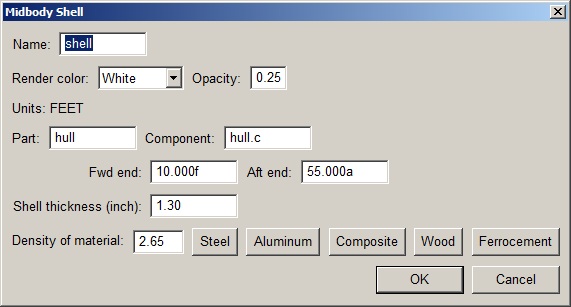
| The segment generator @MidbodyShell produced the geometry for this: |
|
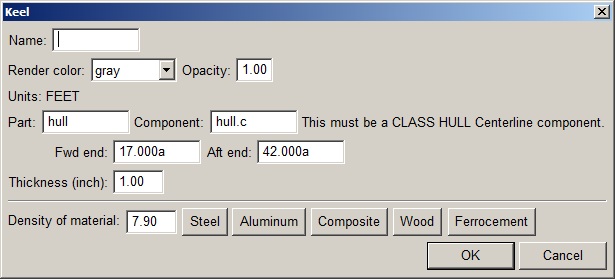
| The steel plate at the bottom was made by @Keel which simply fits the keel to the bottom of the given component. |
|
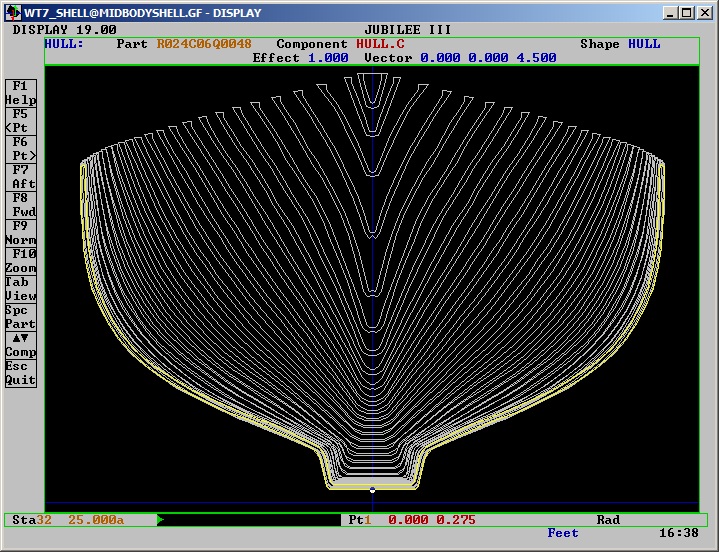
| Here are the forward sections of the shell: |
|
|
The reason this method is called "MidbodyShell" and not simply "Shell" is that the thickness parameter is
applied in the transverse-vertical plane regardless of longitudinal curvature, which will underestimate
the weight distribution at the ends of the body. Separate segments representing the ends could be used
to correct this.
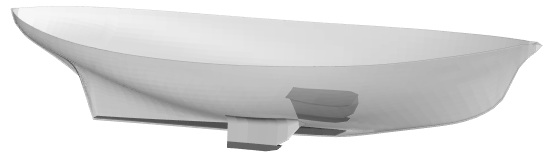
An important accuracy consideration is getting the average thickness and/or density numbers (including frames) right. This shallow-draft hull includes a pair of fins in addition to its box keel. The fins are solid above a lead shoe. (The port-side fin shows through because the shell is rendered with some transparency.) |
|
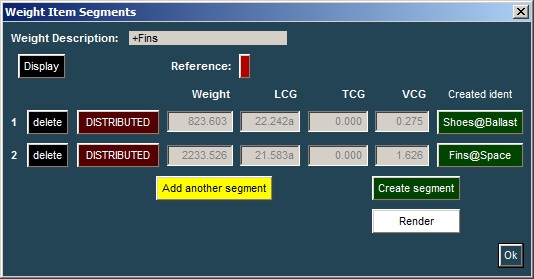
| Two segments contribute to the +Fins weight item using different segment methods. |
|
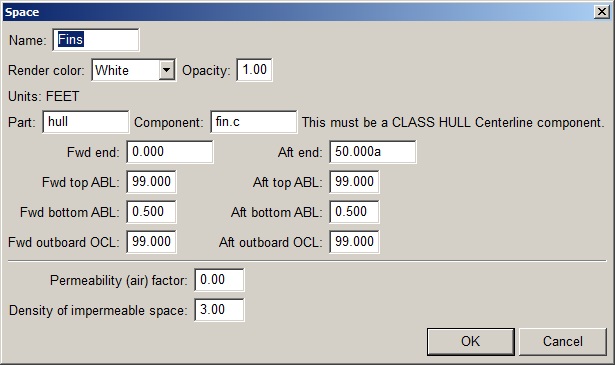
| The fins above the shoes use @Space. The primary purpose of @Space is to represent interior spaces of low overall weight density. Here it fits to the interior of the fins with a high density. |
|
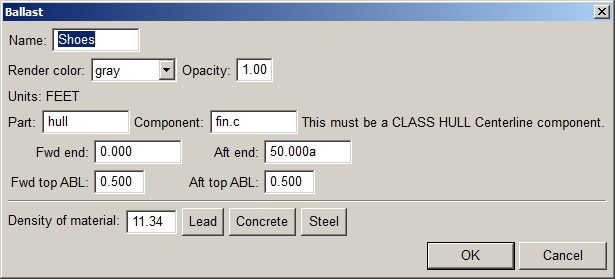
| The shoes on the fins use @Ballast which like @Keel fits to the bottom of the named component, but instead of a fixed thickness it takes a height above baseline for its top. |
|
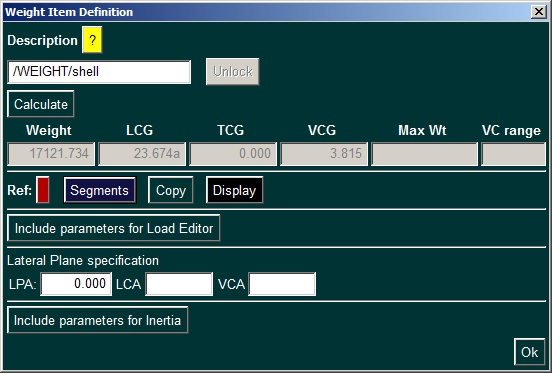
| Here is the summary of the shell weight item (not including the fins which are in a separate item). Note that the item name is prefixed with /WEIGHT/ which indicates that it will become the main WEIGHT item when copied out of the data base. |
|
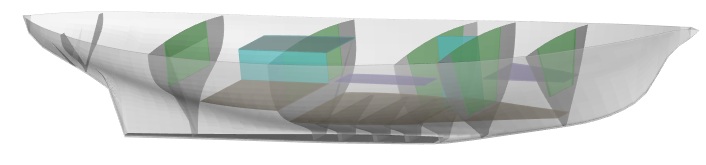
| If you noticed @LongBulkhead, @TransBulkgead, and @HorizBulkhead in the list of available methods, you probably suspected that this COW would wander far from the barn where it started. |
|
|
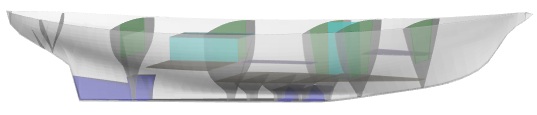
Note the soles and berths and table top that applied @HorizBulkhead and the two applications of @LongBulkhead (blueish color).
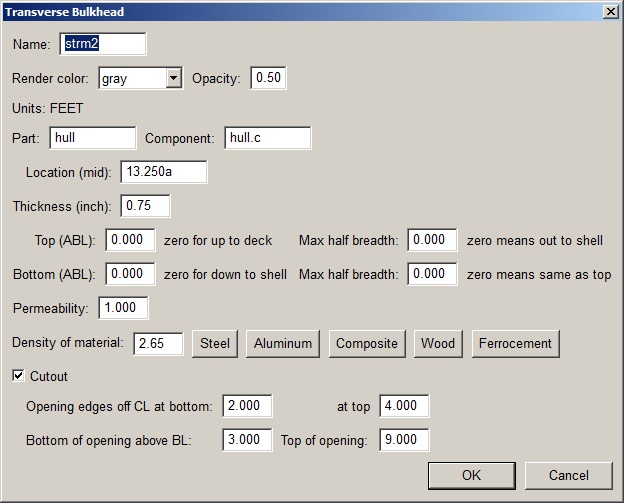
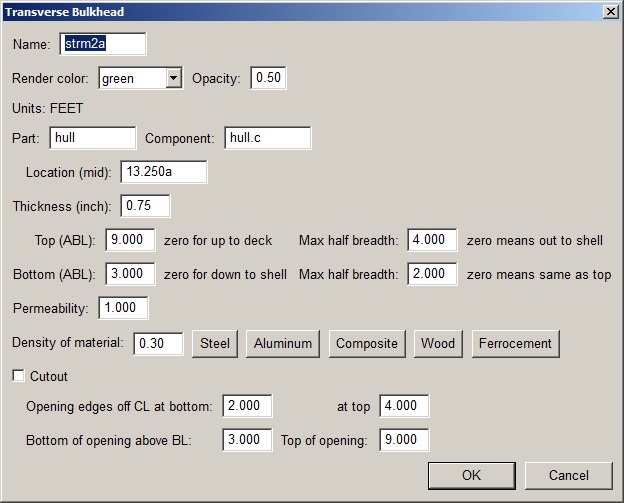
Three heavy floors in way of the fins were an easy application of @TransBulkhead. The main transverse bulkheads are composed of two materials with very different weight densities, so each was modeled with two applications of @TransBulkhead, making use of the "cutout" option. Here is a sample parameter template: |
|
| Good use was made of the option to derive a new segment from an existing one when the inner part of the bulkhead was made to fit the cutout in the outer part. |
|
| @Ballast was applied at various locations (blue) using appropriate densities: |
|
|
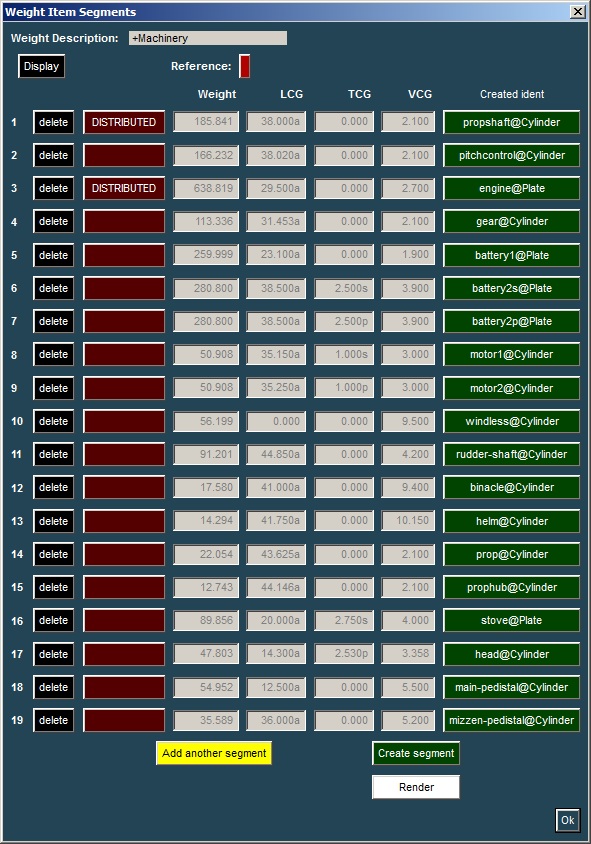
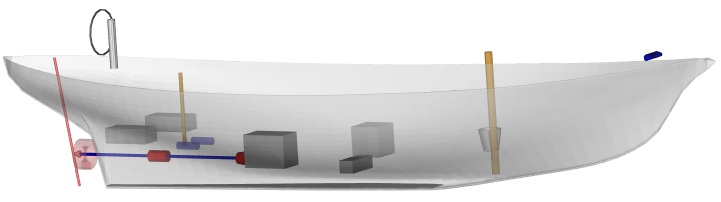
There is no method dedicated to generating discrete weight items because
their weights are known. But they can be added into the picture as simple
blocks using @plate and @Cylinder with a suitable density.
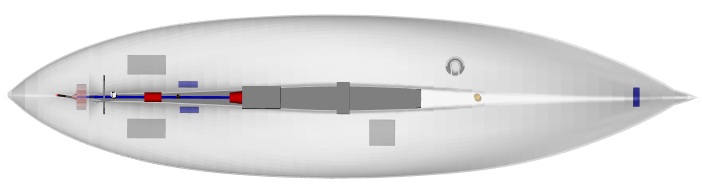
To demonstrate this, we threw in several objects short of the galley sink, calling the weight category "+Machinery". |
|
|
|
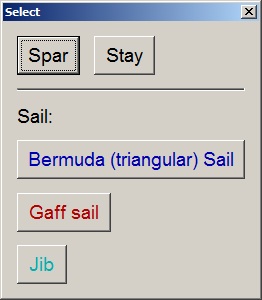
| In the case of a sailing vessel the lateral plane area and its center is of interest, so a convenient way to generate a sail might be used. It so happens that @Rig can do this. When you create a new segment using @Rig, you get this preliminary template: |
|
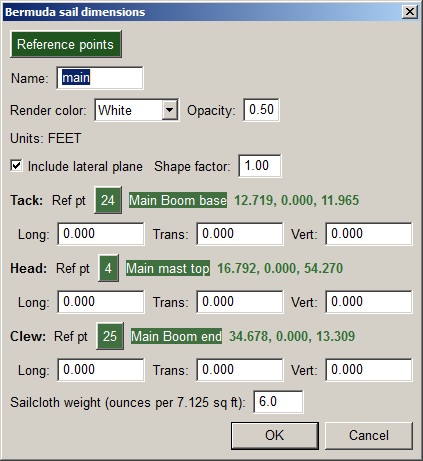
| For the mains'l the parameters look like this: |
|
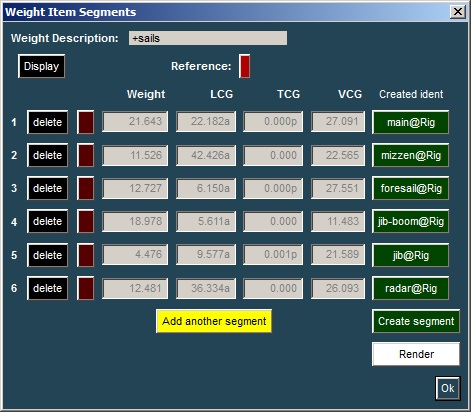
| Here is the list of sails. |
|
|
Note that the radome used @Rig in order to make use of the Reference Points.
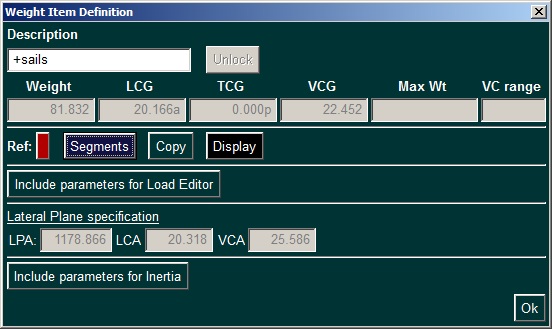
And the total sail area: |
|
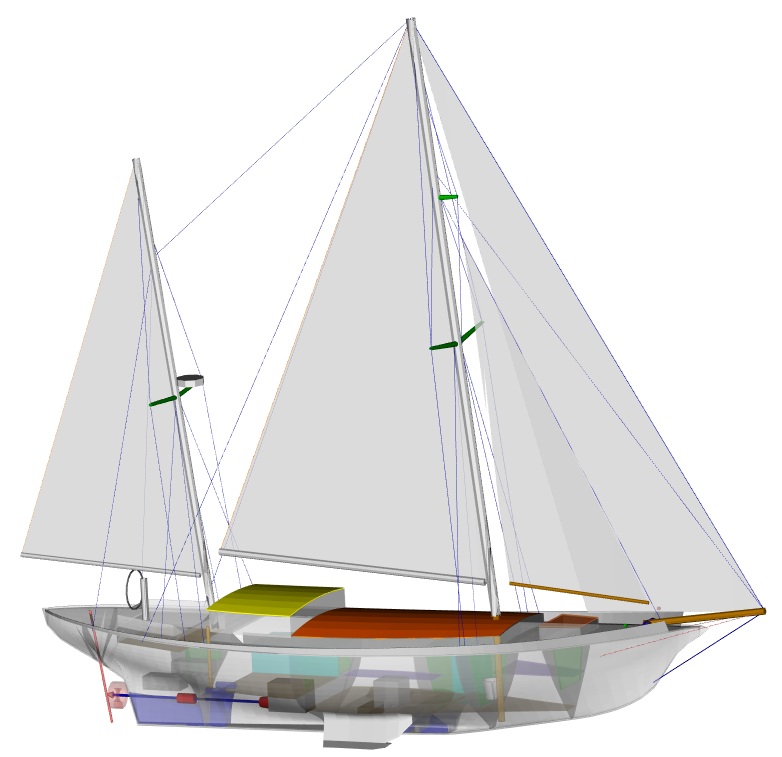
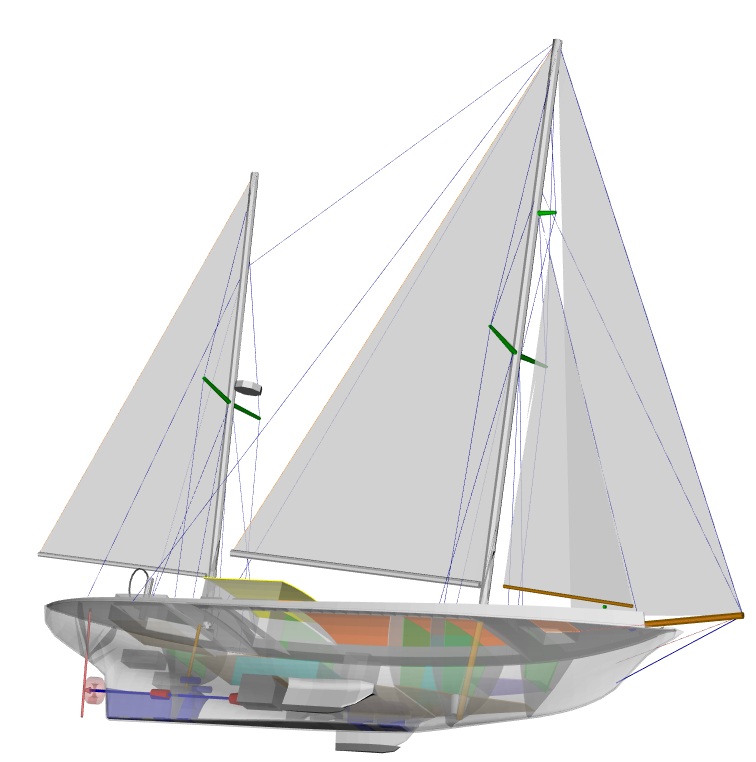
| Here she is with all her parts. (For verification, not for admiration, of course.) |
|
|
|
But this is far from including many details which make a substantial contribution to the
light ship. The purpose of this exercise was primarily to visually verify the rig elements.
Also, the bulkhead weights were a welcome calculation due to their irregular shapes.
Other than that we just got carried away seeing what could be done.
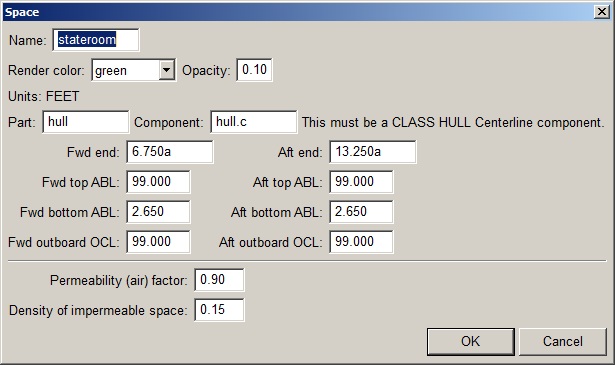
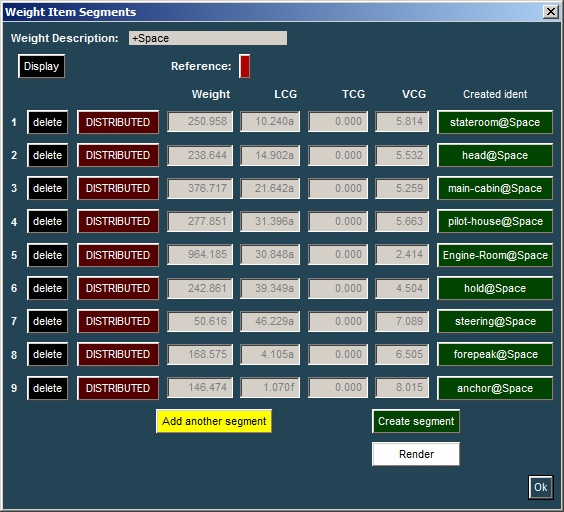
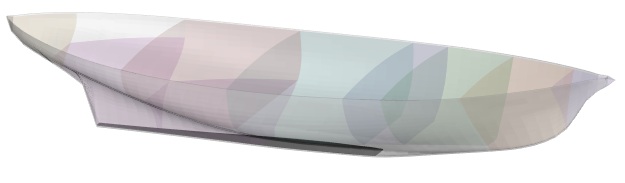
The longitudinal weight distributions would be a major benefit on a longer vessel. The sail areas and centers were nice to have and they were easy to get, but it must be admitted that the picture was the main benefit if it can be called a benefit, being rather crude as renderings go. Having come this far, why not make a stab at estimating the many missing details? @Space is intended for that purpose. Think of an interior space as a tank where the permeable portion is air and the rest structure. So it needs a permeability factor and an average density number for all the structure and objects in the room. |
|
|
|
|
Items of known weight and location are easily entered
directly, which is what the yellow "Add another segment" button is for. Longitudinal distributions can be entered as well.
COW d007A covers this in detail.
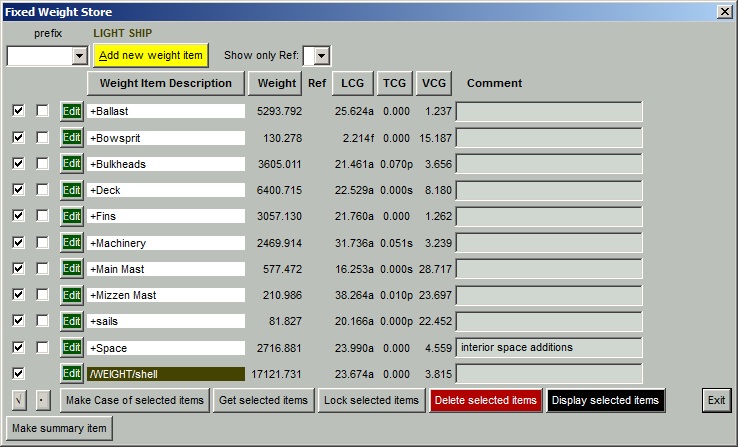
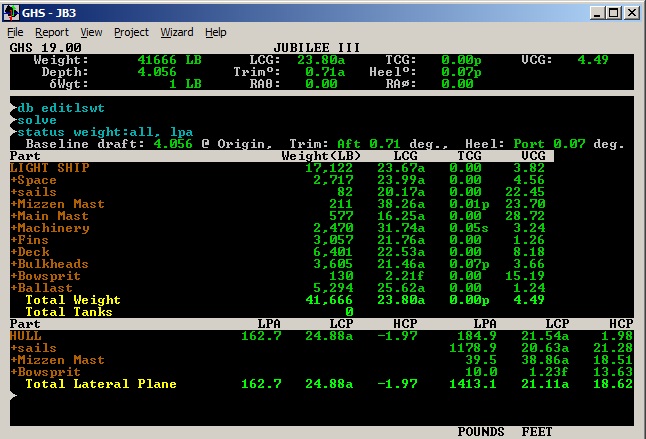
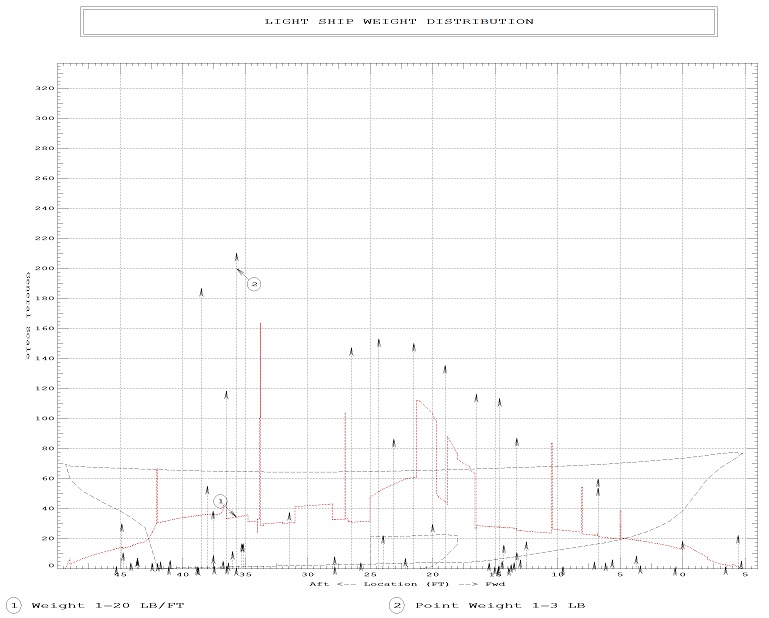
Here is the main dialog for DB EditLSwt. No total is shown because this is a store, not a direct input of weights for the light ship. For this exercise, all the weight items have been checked so that the "Get selected items" button sends them out as WEIGHT and ADD commands. (The same thing can be done outside of the EditLSwt dialog using DB GetLSWt.) |
|
|
|
|
We know from actual weighing that the LCG matches well but she is a bit heavier than this
calculation shows. Yes, this vessel, 53-foot Jubilee III, actually exists. The only
question was the VCG.
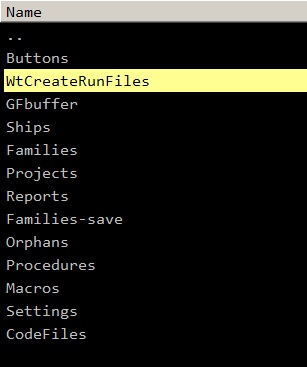
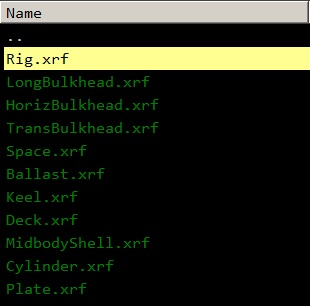
She qualifies as a museum piece because she was the inspiration that resulted in GHS. Building Creative Systems took precedence while the project that started it all had to wait. She is still waiting, but progress is being made. Over the years many GHS users have visited and inspected her while under various stages of construction -- naval architects even from far away, like Anna and Lucy. As promised, here is the reason for the weight-create methods appearing in alphabetical order. Each method consists of Part Maker command code contained in a separate file. You will find these files in a folder named WtCreateRunFiles at the first level within your Data Base folder: |
|
|
|
This is where the "Available methods" menu gets its entries.
Within a folder, the order of the files is not guaranteed.
So it is better to have them sorted alphabetically for the presentation than
to have the order be inconsistent.
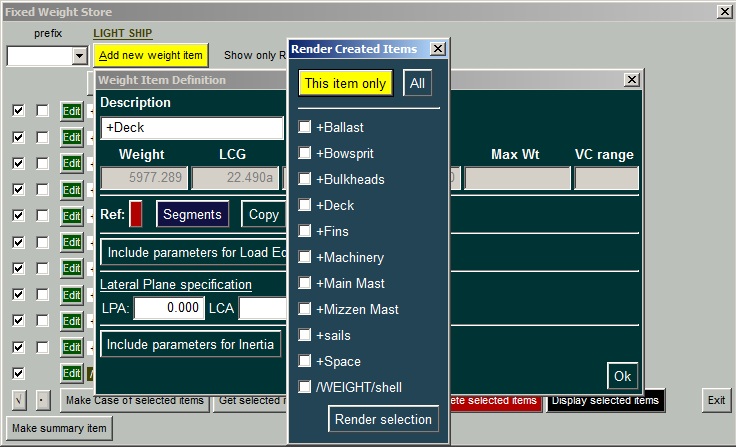
Why is it done this way? Why are these methods put out as files and not contained internally in the Data-Base script? They are put out as readable files so you can see how the weight geometry is created in case you want to make a method of your own or copy one and modify it for your own purposes. Any new .xrf file found in that folder becomes a new method for creating weight geometry. For example, if you don't like the design of the dialog for cylinder input, you could copy Cylinder.xrf and name it Cylinder2.xrf and then edit it to your liking. If you were to simply modify Cylinder.xrf, your changes would disappear the next time you run GHS (and give a DB command) because those files will have been renewed, but your new files will not be touched. One other thing you might wonder about is how the graphics include various combinations of weight items. The "Render" button in any weight-item dialog knows about all the items that might contribute to the rendered view: |
|
|
Questions, comments, or requests?
Contact Creative Systems, Inc. USA phone: 360-385-6212 Fax: 360-385-6213 Office hours: 7:00 am - 4:00 pm Pacific Time, Monday - Friday Mailing address: PO Box 1910 Port Townsend, WA 98368 USA Click here for an index to this and previous COWs |